

Next-Gen App & Browser Testing Cloud
Trusted by 2 Mn+ QAs & Devs to accelerate their release cycles


Selenium Locators Explained: Types, Examples, Syntax, and Best Practices
Learn different types of locators in Selenium WebDriver and how to use them for Selenium automation testing

Faisal Khatri
March 2, 2026
Learn different types of locators in Selenium WebDriver and how to use them for Selenium automation testing
Before Selenium can click a button or type into a field, it must first find that element on the page. This is where Selenium locators come in.
Locators are the methods Selenium WebDriver uses to identify elements in a web page's HTML structure so test scripts can interact with them reliably.
Selenium locators are like the building block of a test script that helps testers interact with the elements in the Document Object Model (DOM). Choosing the best-suited locators in Selenium WebDriver is one of the keys to ensuring that the tests are less flaky (or brittle).
In this tutorial, we deep dive into the multiple locators in Selenium WebDriver, along with demonstrating the usage of those locators. If you are preparing for an interview you can learn more through Selenium interview questions.
Overview
What Are Locators in Selenium WebDriver?
Locators in Selenium WebDriver are mechanisms for identifying HTML elements on a web page. They enable test scripts to interact with WebElements in the DOM by performing actions like clicking, typing, and selecting.
What Are the Different Types of Locators in Selenium WebDriver?
Selenium WebDriver provides eight types of locators, each suited for different element identification needs.
- ID: The fastest and most preferred locator, using the unique ID attribute of an element.
- Name: Locates elements using the Name attribute; may not always be unique on the page.
- ClassName: Identifies elements using the class attribute defined in the DOM.
- LinkText / Partial LinkText: Locates elements using the full or partial text in hyperlinks with anchor tags.
- TagName: Identifies elements using HTML tag names like div, table, or h1.
- CSS Selector: Uses CSS style rules to locate elements through tag, ID, class, attributes, and wildcards.
- XPath: Uses XML path expressions supporting standard, contains, starts-with, text, and AND/OR operators.
What Are Relative Locators in Selenium 4?
Relative locators locate WebElements in relation to other elements on the page.
- above() / below(): Locates elements above or below a specified element.
- toLeftOf() / toRightOf(): Locates elements to the left or right of a specified element.
- near(): Locates elements within 50 pixels of a specified element.
What Are the Best Practices for Using Locators?
Following best practices ensures stable, maintainable, and less flaky test scripts.
- Use Unique IDs: Prefer ID locator whenever available as it is the fastest and most reliable.
- Avoid Dynamic Attributes: Do not rely on auto-generated or frequently changing values.
- Keep Locators Short: Avoid overly long XPath or CSS chains dependent on deep HTML structure.
- Use Explicit Waits: Ensure elements are ready before interacting to reduce flaky tests.
What Are Selenium Locators?
Before your Selenium test can click a button, type into a field, or check if something exists on the page, it first needs to find that element. Selenium locators are the methods used to find these elements.
Think of locators as addresses. Just like you need an address to find a house, Selenium needs a locator to find an element on a web page. It looks at things like the element's ID, name, class, or position in the HTML to track it down.
In other words, Selenium locators are like the building blocks of a test script that help testers interact with the elements in the Document Object Model (DOM).
8 Types of Selenium Locators (Quick Sheet)
| Locators | Description | Syntax (in Java) |
|---|---|---|
| id | Identify the WebElement using the ID attribute. | driver.findElement(By.id("IdValue")); |
| name | Identify the WebElement using the Name attribute. | driver.findElement(By.name("nameValue")); |
| className | Use the Class attribute for identifying the object. | driver.findElement(By.className("classValue")); |
| linkText | Use the text in hyperlinks to locate the WebElement. | driver.findElement(By.linkText("textofLink")); |
| partialLinkText | Use a part of the text in hyperlinks to locate the WebElement. | driver.findElement(By.partialLinkText("PartialTextofLink")); |
| tagName | Use the tagName to locate the desired WebElement. | driver.findElement(By.tagName("htmlTag")); |
| cssSelector | Use CSS rules to locate the desired WebElement. | driver.findElement(By.cssSelector("cssValue")); |
| xpath | Use XPath to locate the WebElement. | driver.findElement(By.xpath("xpathValue")); |
Now that you know the essentials of Selenium locators, let me deep-dive into each locator in Selenium WebDriver in more detail.
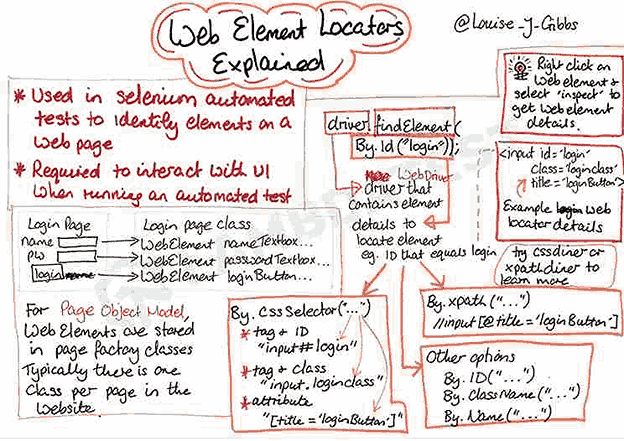
Different Types of Locators in Selenium WebDrivber
Below is the list of these locators of Selenium WebDriver:
- ID
- Name
- ClassName
- LinkText
- Partial LinkText
- TagName
- CSS Selector
- XPath
As mentioned, Selenium WebDriver provides different web locators for locating WebElements on the page. Here are the different locators in Selenium WebDriver that I will cover in-depth in the latter part of the blog: Identify WebElements Using Locators in Selenium WebDriver
1. ID Locator in Selenium
ID locator in Selenium is the most preferred and fastest way to locate desired WebElements on the page. ID locators are unique for each element in the DOM.
Since IDs are unique for each element on the page, it is considered the fastest and safest method to locate elements. Unfortunately, developers may or may not follow this rule, as browsers do allow bypassing this rule.
Specifically, in the case of a table or list, the IDs may populate incrementally or dynamically depending on the data in the table. In such cases, testers use other locators in Selenium WebDriver to locate the desired element on the page.
One of the Selenium best practices is to leverage the capabilities offered by the ID locator in Selenium since it is the fastest locator of the entire lot. Therefore, choosing the ID locator over other locators in Selenium WebDriver will go a long way to speed up Selenium test case execution.
I have used the Chrome Developer Tools menu to locate the WebElement using the *id* locator. Below is the DOM structure of the element:
<input type="text" name="email" value="" placeholder="E-Mail Address" id="input-email" class="form-control">The below method is used for locating the desired element using the *id* locator:
driver.findElement(By.id("input-email"));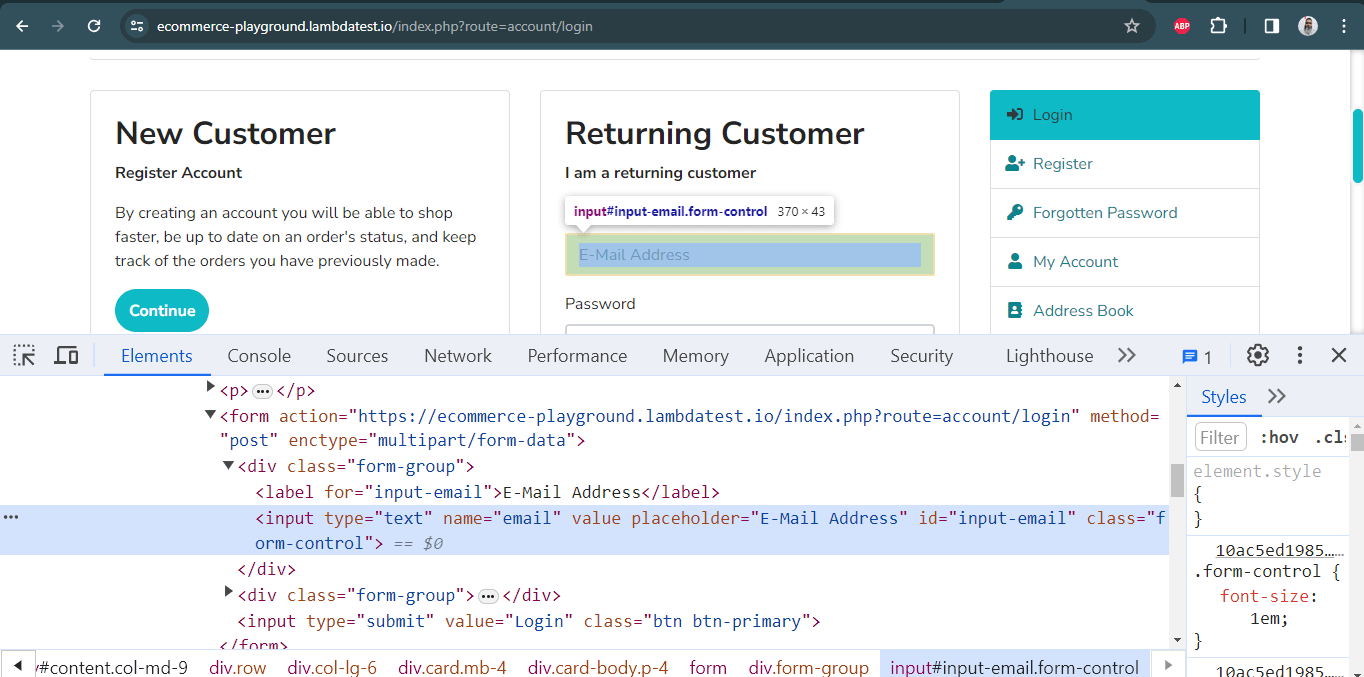
If no DOM element matches the required *id*, *NoSuchElementException* is thrown. Therefore, it is important to have a good know-how of the common exceptions in Selenium to build a more robust Selenium test suite.
2. Name Locator in Selenium
An element can be defined via multiple attributes, one such attribute is Name. A Name locator in Selenium WebDriver can also locate elements like an ID locator.
Unlike ID locators, which are unique for a page, the Name locator may or may not have a unique value. If there are WebElements with the same name, the locator selects the first element with that Name on the page.
In case no such name matches with the defined attribute value, *NoSuchElementException* is raised.
Here is how the desired WebElement can be located using the *name* locator in Selenium:
driver.findElement(By.name("email"));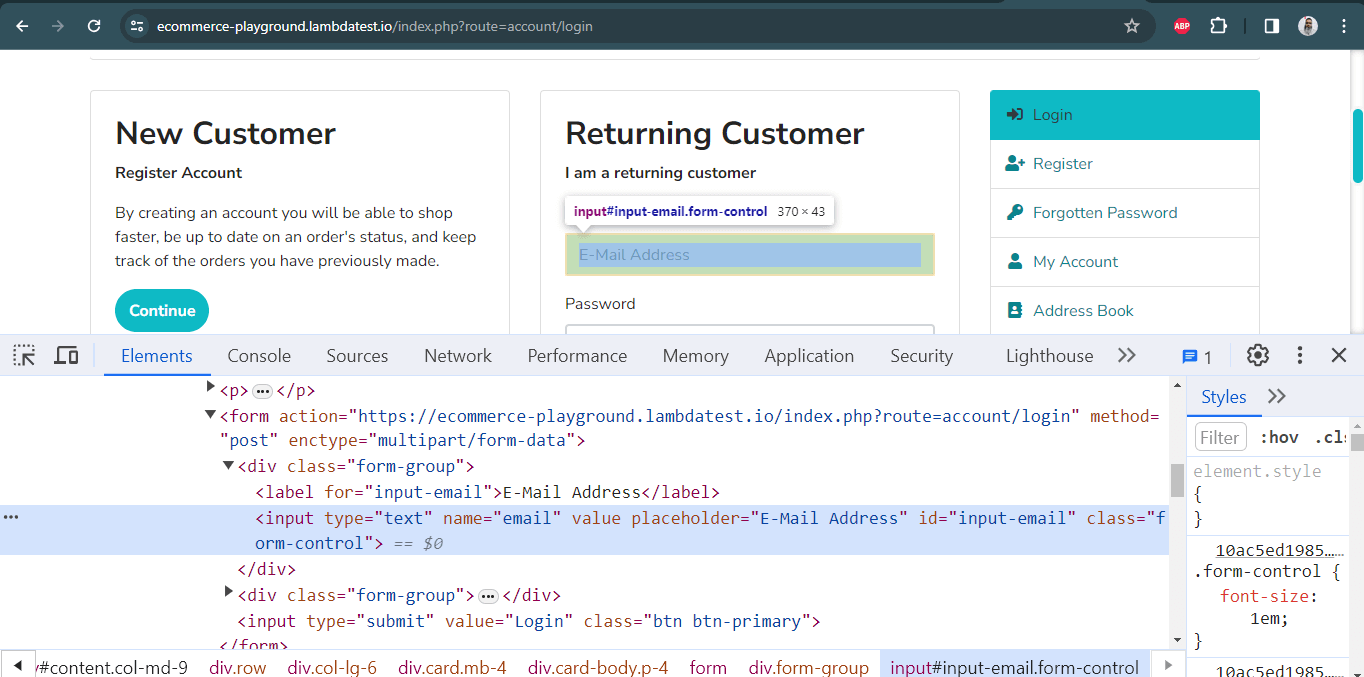
3. ClassName Locator in Selenium
ClassName locator is used for locating WebElements defined using the class attribute. Below is the DOM snapshot of the Ajax Form Submit page that is available on our website.
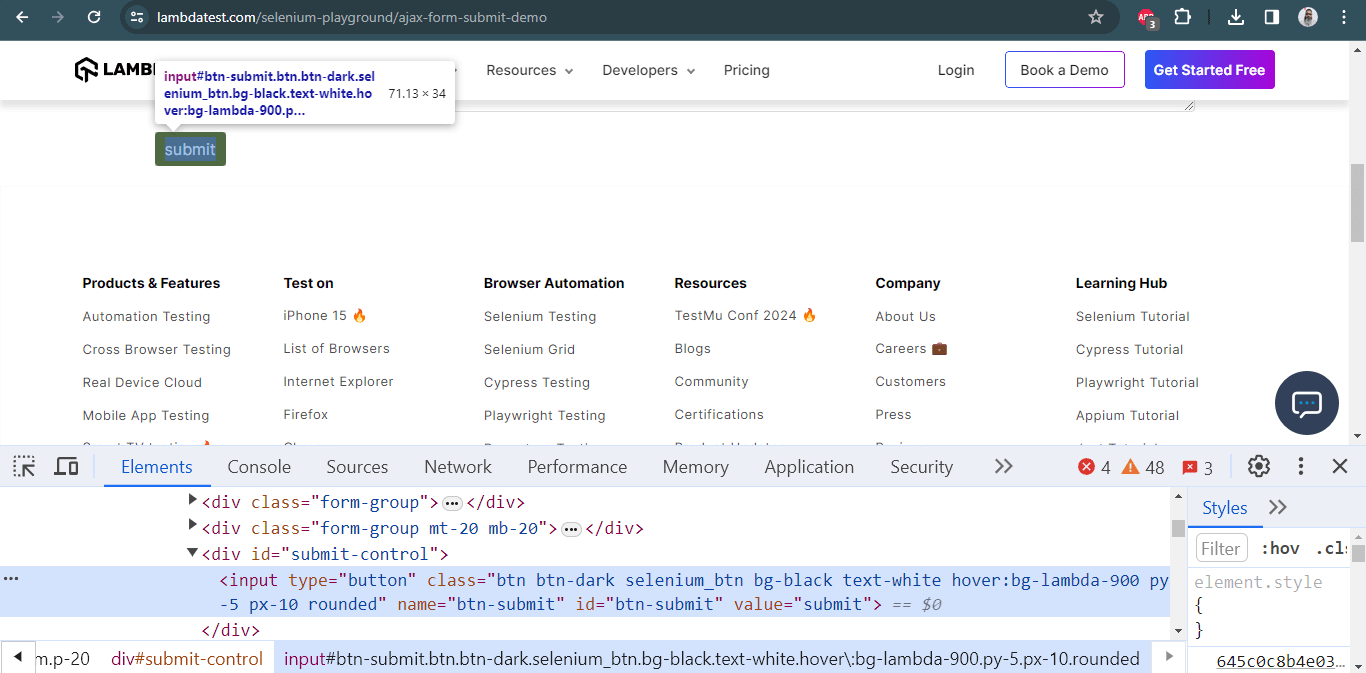
For locating the WebElement of the Submit button via the *className* locator in Selenium, we use the *class* attribute in the following DOM structure:
<input type="button" class="btn btn-dark selenium_btn bg-black text-white hover:bg-lambda-900 py-5 px-10 rounded" name="btn-submit" id="btn-submit" value="submit">Here is how the desired WebElement was located using the *className* locator in Selenium:
driver.findElement(By.className("btn-dark"));4. TagName Locator in Selenium
As the name specifies, this CSS locator in Selenium WebDriver is used to identify elements using tag names like *div*, *table*, *h1*, etc.
Notice here that the *findElements* method is used. It will return a list of all the WebElements with the *tagName* "a" that normally holds the links:
driver.findElements(By.tagName("a"));5. LinkText Locator in Selenium
Elements can be located by LinkText, which is present in the hyperlinks. For example, the first link would be selected in a scenario with multiple links of the same text.
However, this identifier strategy can only be used for elements with an anchor( < a > ) tag.
Below is an example of the TestMu AI Selenium Playground website showcasing the selection of the Ajax Form Submit link that is available on the home page. The DOM below shows the highlighted element:
Below is the DOM structure of the same:
<a href="https://www.lambdatest.com/selenium-playground/ajax-form-submit-demo" class="text-black text-size-14 hover:text-lambda-900 leading-relaxed">Ajax Form Submit</a>Here is how the desired WebElement was located using the linkText locator in Selenium:
driver.findElement(By.linkText("Ajax Form Submit"));Below is an example of the TestMu AI Selenium Playground website showcasing the selection of the Ajax Form Submit link that is available on the home page. The DOM below shows the highlighted element:
6. Partial LinkText Locator in Selenium
There is a provision to locate a WebElement using Partial LinkText akin to the normal LinkText locator in Selenium. Locating WebElements using Partial LinkText is preferred when the link text is too long.
Here, the partial text helps identify and use a unique element to perform further actions on it. Sometimes, this can also be locating multiple links on a page with a common partial text.
Here is the DOM structure of the element:
<a href="https://www.lambdatest.com/selenium-playground/auto-healing" class="text-black text-size-14 hover:text-lambda-900 leading-relaxed">Auto Healing</a>Here is how the desired WebElement was located using the *partialLinkText* locator in Selenium:
The syntax for locating elements by *partialLinkText* is:
driver.findElement(By.partialLinkText("Healing"));For more information on Link Text and Partial LinkText locators, we recommend you check this article to find elements with linkText and partialLinkText in Selenium.
Watch this video to learn the *Actions* class in Selenium and how to use it.
7. CSS Selector Locator in Selenium
CSS (Cascading Style Sheets) is used to style web pages. At the same time, CSS is also one of the widely-used ways to locate WebElements in the DOM.
The CSS Selector in Selenium should be chosen when:
- ID or Name locators are not available
- You need better performance than XPath
- You want shorter and more readable expressions
In most automation scenarios, CSS selectors are faster and cleaner than XPath.
1. Tag and ID in CSS Selector
When an element has a unique ID, CSS makes it extremely simple to locate.
Below is the DOM part indicating the First Name field on the Register Account page of the TestMu AI eCommerce Playground website.
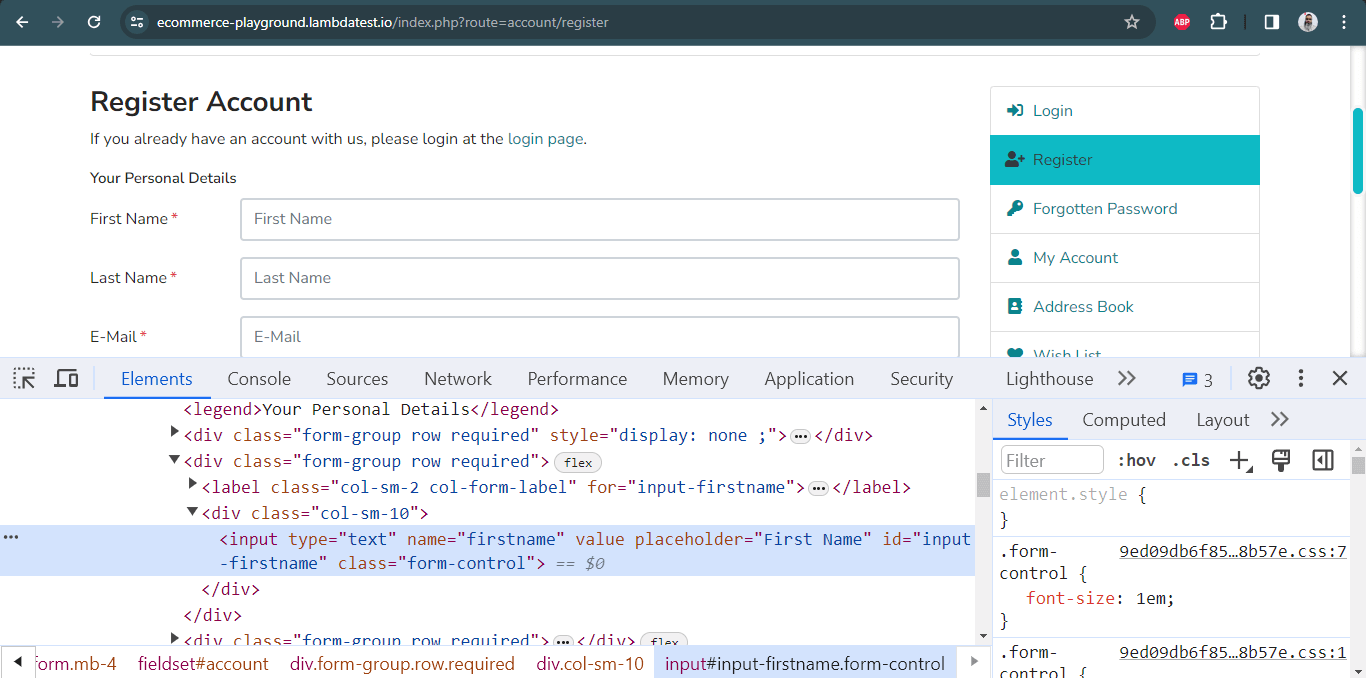
<input type="text" name="firstname" value="" placeholder="First Name" id="input-firstname" class="form-control">Syntax:
tagname#idValueExample:
driver.findElement(By.cssSelector("input#input-firstname"));Syntax: css=(Html tag )(\\#) (value of the ID attribute)
2. Tag and Class in CSS Selector
Use a dot (.) to represent class.
Syntax:
tagname.classValueExample:
driver.findElement(By.cssSelector("input.form-control"));Here is the DOM snapshot and the corresponding command to access the required WebElement using CSS Selector in Selenium.
Let’s locate the email address field’s element on the TestMu AI eCommerce Playground.
3. Tag and Attribute
You can locate elements using any attribute.
Syntax:
tagname[attribute='value']Example:
driver.findElement(By.cssSelector("input[name='phone']"));4. Combining Tag, Class, and Attribute
Syntax:
tagname.className[attribute='value']Example:
driver.findElement(By.cssSelector("button.bg-lambda-900[type='submit']"));5. Wildcards in CSS Selectors
CSS allows flexible matching using special operators:
Starts With (^)
driver.findElement(By.cssSelector("input[name^='em']"));Ends With ($)
driver.findElement(By.cssSelector("input[name$='ail']"));Contains (\\*)
driver.findElement(By.cssSelector("input[class*='control']"));6. Child Elements in CSS Selector
You can locate nested elements using structural relationships.
Example:
driver.findElement(By.cssSelector("ul > li:nth-child(1) > a"));Use this when you need elements inside lists, tables, or complex layouts.
8. XPath Using AND and OR
The *AND*, and *OR* operators in the XPath selector in Selenium are used when locating a WebElement based on certain condition sets. In the case of *AND*, both conditions should be true. On the other hand, either of the two conditions can be true for *OR* in operator XPath.
Syntax of OR operator in XPath:
//input[@id='login_1' OR @name='login']Syntax of AND operator in XPath:
//input[@id='login_1' AND @name='login']Below is the DOM structure of the element:
<input type="text" name="email" value="" placeholder="E-Mail Address" id="input-email" class="form-control">Here is how we used the *OR* operator with the XPath locator in Selenium:
driver.findElement(By.xpath("//input[@id="input-email" or @name="email"]"));Here is how we used the *AND* operator with the XPath locator in Selenium:
driver.findElement(By.xpath("//input[@id="input-email" AND @name="email"]"));starts-with() Method in XPath
The *starts-with()* method in XPath offers functionalities similar to the CSS Selector in Selenium. It helps in locating elements that start with a specified attribute value. The *starts-with()* method in XPath is majorly used for locating WebElements whose value changes on the refresh of a page.
Syntax:
//tagname[starts-with(@attribute,'starting name of the attribute value')]Below is the DOM structure of the element:
<input type="password" name="password" value="" placeholder="Password" id="input-password" class="form-control">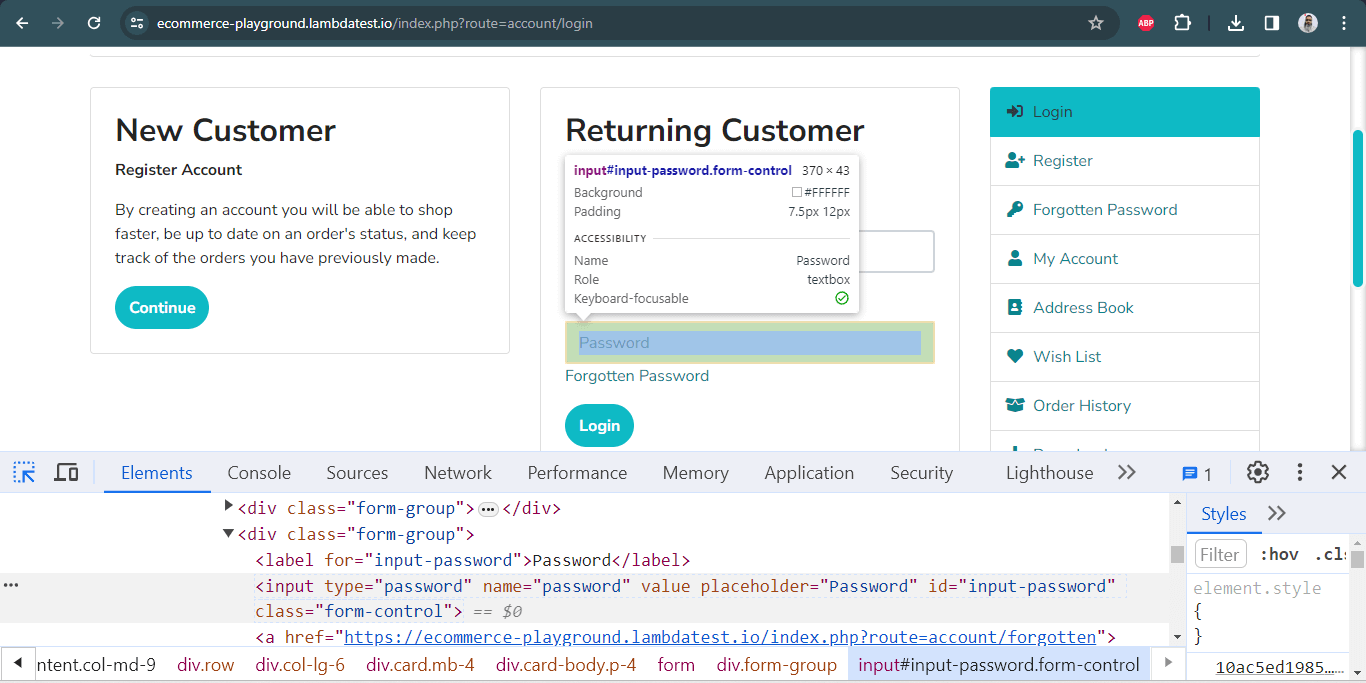
Here is how we locate the Password element using the *starts-with()* method with *xpath* in Selenium:
driver.findElement(By.xpath("//input[starts-with(@name,'pass')]"));XPath Text
Text in the XPath locator in Selenium helps locate WebElements via XPath using exact text match. It can be used when elements have to be located by looking into the tags containing certain text.
Syntax:
//div[text()='Logged In']Here is the DOM structure of the required WebElement: <button type="submit" class="bg-black hover:bg-transparent hover:text-black border border-black text-white rounded focus:outline-none selenium\\_btn py-5 px-10 rounded mt-20 w-120">Submit\\</button>
Here is how we locate the Submit button element using the *xpath* text:
driver.findElement(By.xpath("//button[text()='Submit']"));Both CSS selectors and XPath are helpful when running complex Selenium test automation scenarios. The choice between XPath and CSS Selector purely depends on the scenario complexity and your convenience in locating WebElements using the corresponding locator.
Relative Locators in Selenium 4
Selenium 4 introduced Relative Locators, which allow you to locate elements based on their position relative to other elements on the page. This is useful when elements do not have unique IDs, names, or stable attributes.
Instead of locating an element directly, you can tell Selenium to find an element above, below, near, left, or right of another element.
Relative locators make test scripts easier to read and more stable when working with dynamic UI layouts.
Types of Relative Locators
Selenium provides the following relative locator methods:
- above() -> Finds element above another element
- below() -> Finds element below another element
- toLeftOf() -> Finds element to the left of another element
- toRightOf() -> Finds element to the right of another element
- near() -> Finds element near another element (within ~50px)
Example (Java)
WebElement password = driver.findElement(By.id("password"));
WebElement username = driver.findElement(with(By.tagName("input")).above(password));
In this example, Selenium finds the username field by locating the input element above the password field.
Relative locators are useful when:
- IDs are dynamic
- XPath becomes too long
- Page layout changes frequently
- You want more readable test code
6 Best Practices for Using Locators in Selenium
Choosing the right locator is important for creating stable, fast, and maintainable test scripts. Poor locator choices often lead to flaky tests that fail when the UI changes.
Follow these best practices when working with Selenium locators.
1. Prefer ID Whenever Available
ID is the fastest and most reliable locator because it is usually unique.
driver.findElement(By.id("loginBtn"));Avoid using complex XPath when ID is available.
2. Avoid Dynamic Attributes
Do not use attributes that change every time the page loads.
Bad example:
id="user_45892"Good example:
name="username"Dynamic values make tests unstable.
3. Keep XPath and CSS Short
Very long locators break easily when UI changes.
Bad:
/html/body/div[2]/div/div/form/inputBetter:
input[name='email']Short locators are easier to maintain.
4. Use CSS Selector When Possible
CSS selectors are usually faster than XPath and easier to read.
Use CSS when:
- ID is not available
- Class or attribute is available
- XPath becomes complex
Example:
driver.findElement(By.cssSelector("input[type='email']"));5. Use XPath Only When Needed
XPath is powerful but should not be the first choice.
Use XPath when:
- Element has no ID or Name
- Element depends on hierarchy
- Element depends on text
Example:
driver.findElement(By.xpath("//button[text()='Login']"));6. Use Explicit Waits with Locators
Sometimes elements take time to appear.
Use waits to avoid test failures.
WebDriverWait wait = new WebDriverWait(driver, Duration.ofSeconds(10));
WebElement btn = wait.until(ExpectedConditions.elementToBeClickable(By.id("login")));
This makes tests more reliable.
When to Use Each Locator in Selenium
Different locators are useful in different situations. Choosing the correct one improves test stability and performance.
| Locator | When to Use |
|---|---|
| ID | First choice, fastest and unique |
| Name | When ID is not available |
| ClassName | When class is unique |
| TagName | When working with groups of elements |
| LinkText | For links with visible text |
| PartialLinkText | When link text is long |
| CSS Selector | Flexible and fast |
| XPath | Complex elements |
| Relative Locators | When layout-based locating is needed |
Use the simplest locator that uniquely identifies the element.
4 Common Mistakes to Avoid with Selenium Locators
Many test failures happen because of a poor locator strategy.
Here are common mistakes to avoid.
1. Using Absolute XPath
Absolute XPath breaks when page structure changes.
Bad:
/html/body/div/div/div/inputUse relative XPath instead.
2. Using Auto-Generated IDs
Dynamic IDs change every run.
Avoid:
id="input_12345"Use stable attributes.
3. Using Very Long CSS or XPath
Long locators are hard to maintain.
Keep them short and readable.
4. Not Waiting for Elements
Tests fail when elements are not loaded yet.
Always use waits when needed.
Key Takeaways
- Selenium locators are used to identify web elements so automation scripts can perform actions like click, type, or verify content.
- Selenium WebDriver provides 8 main locators: ID, Name, ClassName, TagName, LinkText, Partial LinkText, CSS Selector, and XPath.
- ID locator is the fastest and most reliable, while CSS Selector and XPath are used when elements cannot be located with simple attributes.
- XPath offers flexibility, whereas CSS Selector is usually faster and cleaner for most test automation scenarios.
- Selenium 4 also introduced relative locators, which help find elements based on their position on the page.
- Choosing the right locator strategy improves test stability, readability, and maintainability, and reduces flaky tests.


Frequently asked questions
Did you find this page helpful?
More Related Hubs
TestMu AI forEnterprise
Get access to solutions built on Enterprise
grade security, privacy, & compliance
- Advanced access controls
- Advanced data retention rules
- Advanced Local Testing
- Premium Support options
- Early access to beta features
- Private Slack Channel
- Unlimited Manual Accessibility DevTools Tests